Office AI Ends Solo Mode
By Tingyu, reporting from Aofei Temple QbitAI | WeChat official account QbitAI
A behind-the-scenes look at how QbitAI works!
Every day, our editorial team’s group chats are buzzing with story ideas. News leads flood the screen, and someone has to keep track of who’s following up, when it’s due, and where things stand.
This time, we brought in an AI colleague.
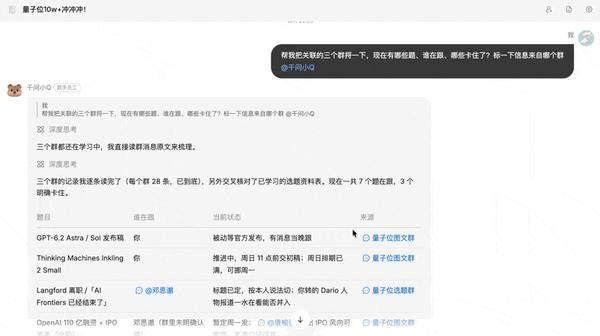
It can summarize group chat history, assign stories, create to-dos, and chase deadlines:
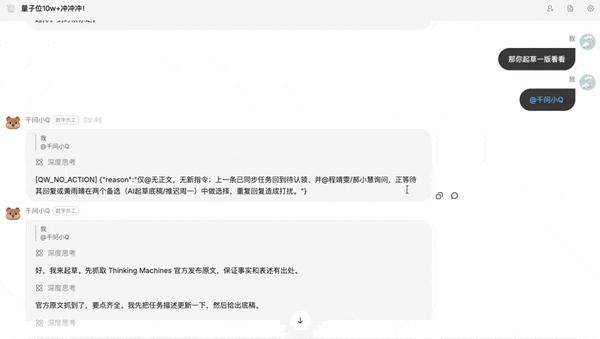
It can even help write first drafts…
Qwen Office has taken over the editorial team’s daily work this time.
(Wait, then what am I here for?)
Qwen Office 2.0 is the biggest upgrade since its three-month public beta.
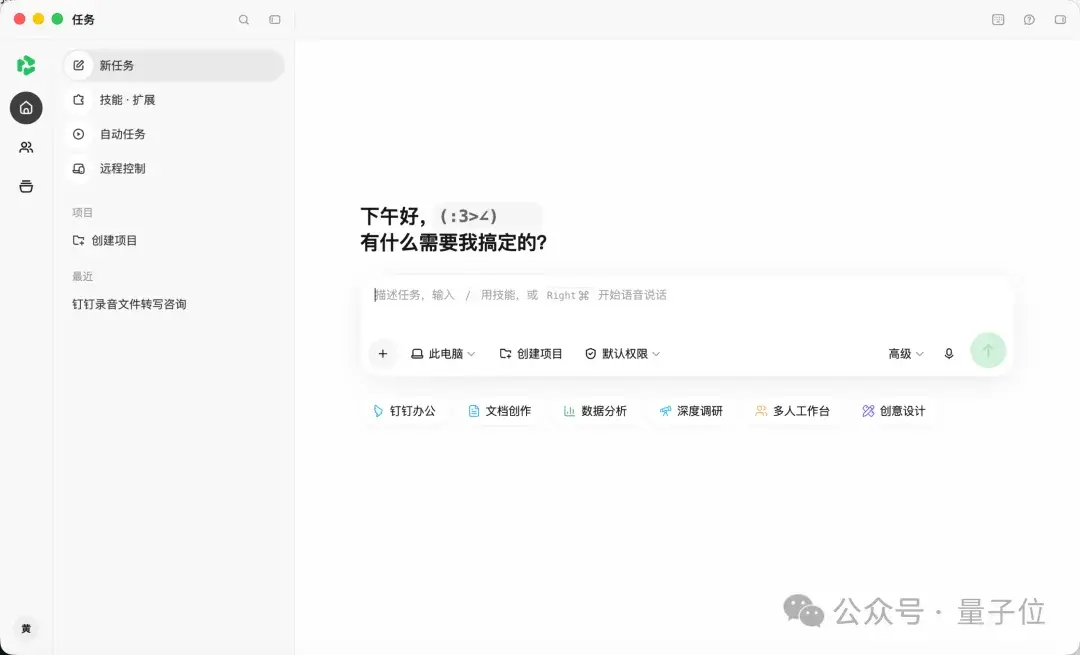
Beyond a refreshed interface, Qwen Office 2.0 introduces “Collaboration”, the industry’s first feature that supports multi-person and Agent collaboration. It also adds human-AI co-creation, automated tasks, a materials space, and three-platform connectivity, among other capabilities.
In its official blog, the team positions Qwen Office 2.0 as a Team Agent.
Put simply, the Agent joins the team and moves work forward together with multiple members.
In Qwen Office 2.0, a team can create a collaboration space and link project-related DingTalk group chats and materials to it, so the Agent knows what everyone is working on.
When a colleague adds new information or changes task requirements, later work can build on that context.
Hmm, this direction seems a bit familiar, doesn’t it?
In June this year, Anthropic launched a beta of Claude Tag in Slack. Team members in the same channel can @mention the same Claude and pick up tasks from each other’s conversations.
Qwen Office’s Team Agent, by contrast, is natively integrated with the office tools and workflows a team already uses. The group chats, documents, and meeting minutes people rely on every day become the working environment where AI takes part in collaboration.
How well does it work? Let’s put it to the test~
Project Information Consolidated Across Groups, Qwen Office Takes Over Follow-Up
The headline feature of Qwen Office 2.0 is Collaboration.
Create a collaboration space in the left sidebar, invite colleagues, then link the project-related DingTalk group chats. The discussions in those groups become the background the AI uses to understand the work.
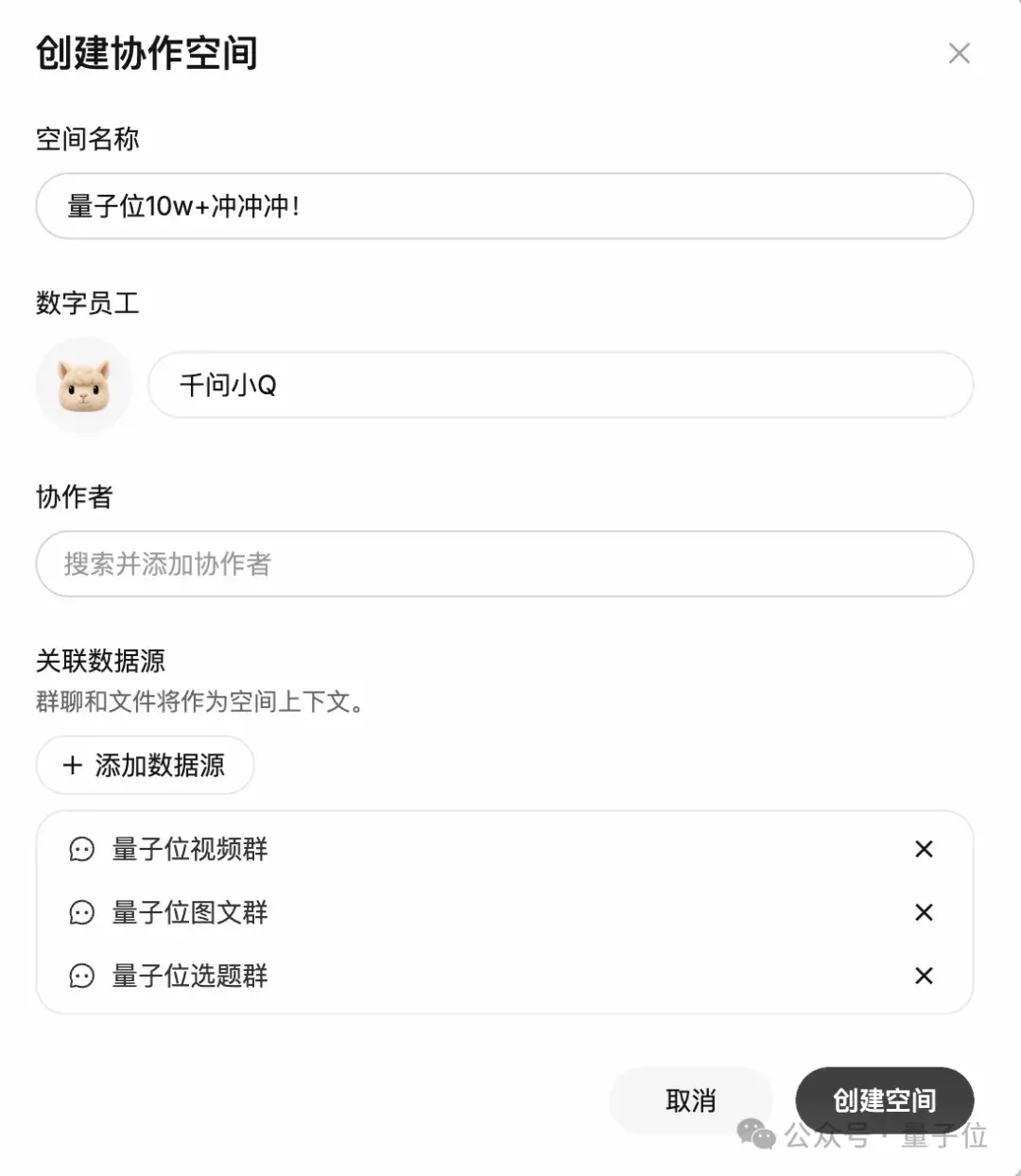
If a project is spread across multiple groups, you can link them all to the same space. Project-related AI transcripts, cloud documents, and local materials can be added as well.
That way, when Xiao Q handles a task, it can draw on the group discussions and existing materials to understand the full story.
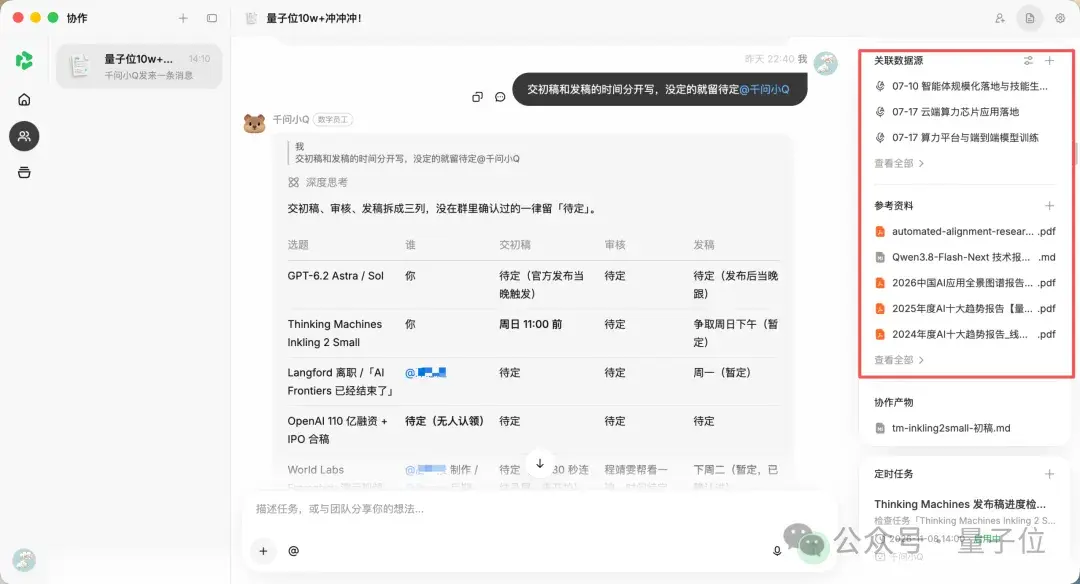
Here, I uploaded all the AI transcripts from my DingTalk recording card, along with various local files.
(I have to say, the DingTalk recording card is pretty handy.)
I also linked three DingTalk group chats: the QbitAI story ideas group, the articles group, and the video group.

Each of these three groups has its own set of colleagues. People usually share news leads and pitch stories in them, and the discussions get pretty lively.
The articles and video teams often cover overlapping news, so a conversation about one story can easily spill over into another group.
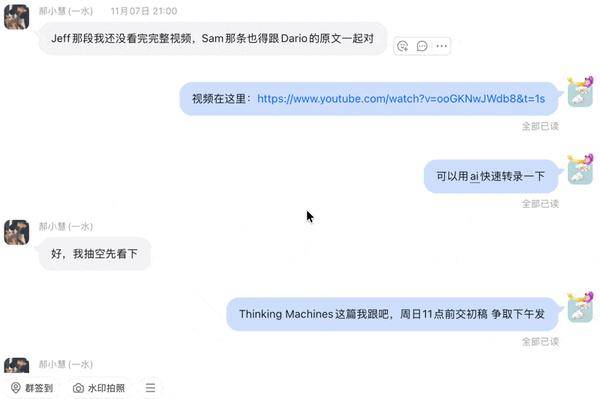
To find out what stories are in the pipeline, who’s working on them, and when they’re due, you inevitably end up scrolling back and forth through chat history.
Once the three groups are linked to a Qwen Office collaboration space, you can just ask Xiao Q to sort it out:
Go through the three linked groups for me. What stories do we have right now, who’s on them, and which ones are stuck? Note which group each piece of information came from.
Xiao Q then produced a story progress table that pulled the scattered discussions together, with the source group chat noted for each item:
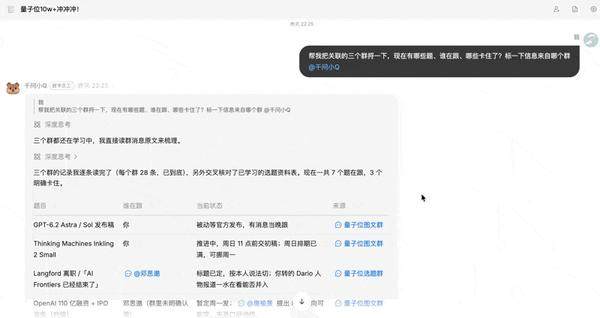
Once the progress table is compiled, you can also ask Xiao Q to judge from the chat content which stories are time-sensitive and which can be polished at a slower pace.
For example, GPT-6.2 is about to launch, but the related story has to wait for the official announcement before we follow up. The Thinking Machines new-model report is already scheduled, with a first-draft time agreed on.
The two stories colleagues pitched about Jeff Dean and Altman need the original sources sorted out first, so no delivery time has been set for now.
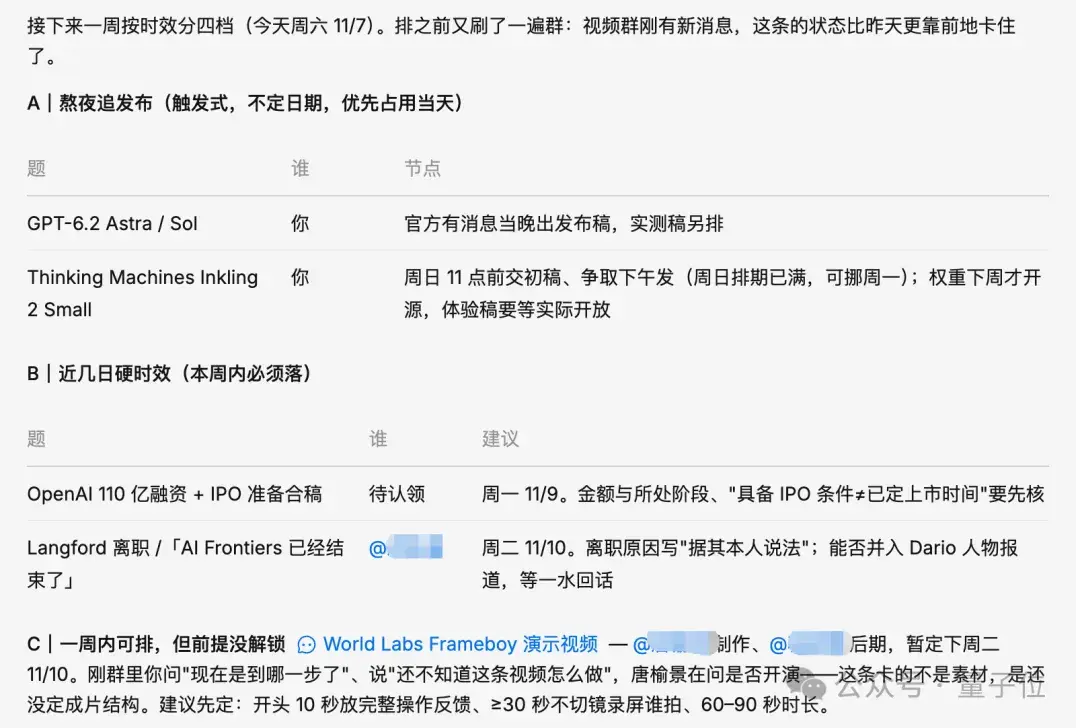
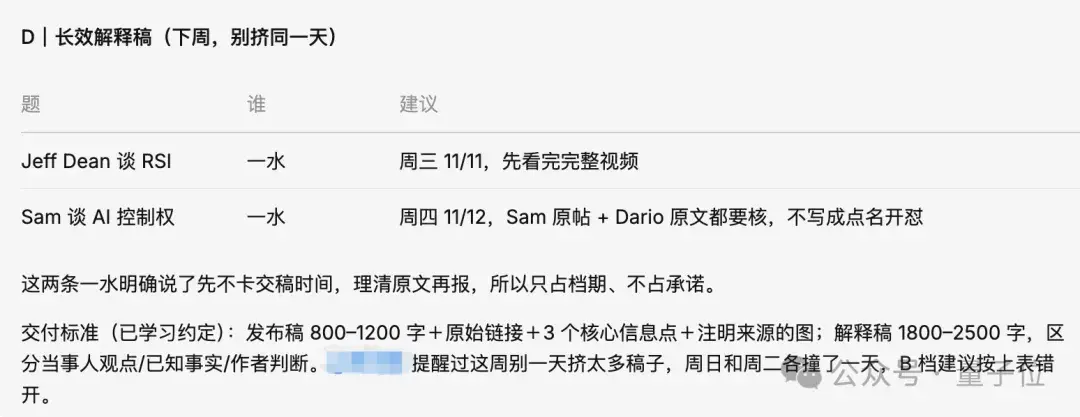
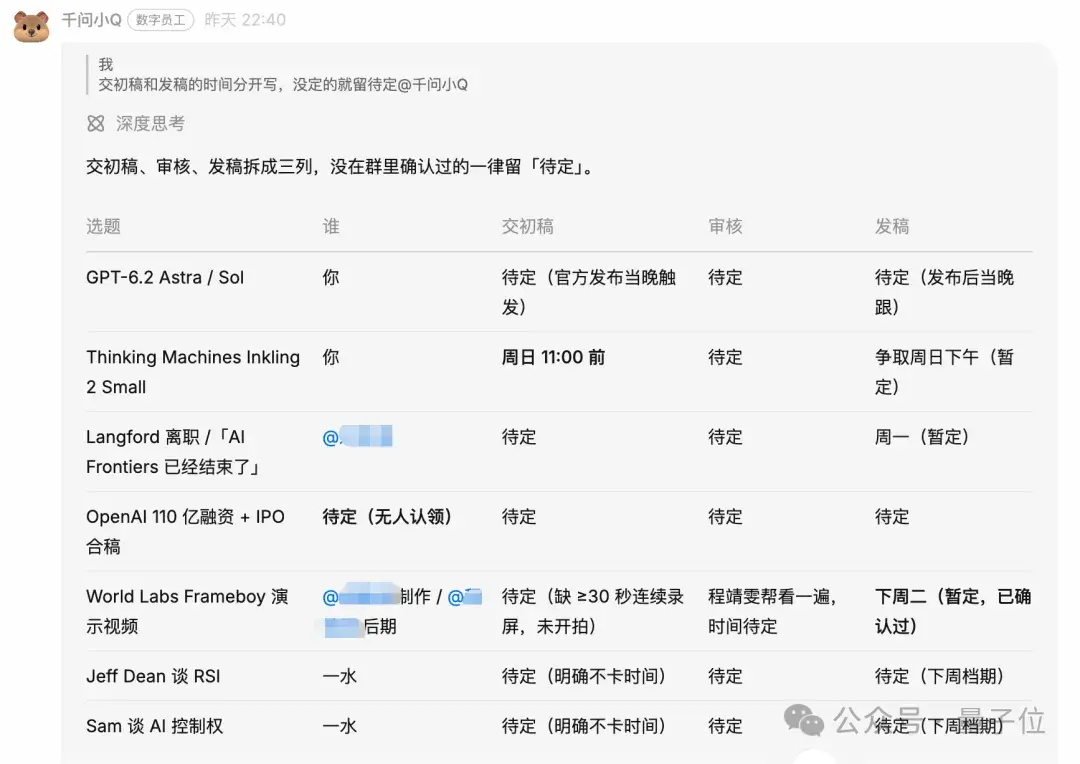
You can also ask it to list the times for first draft, review, and official publication separately, leaving anything unconfirmed as TBD:
For the video group, you can likewise have it go through the chat and compile story ideas:
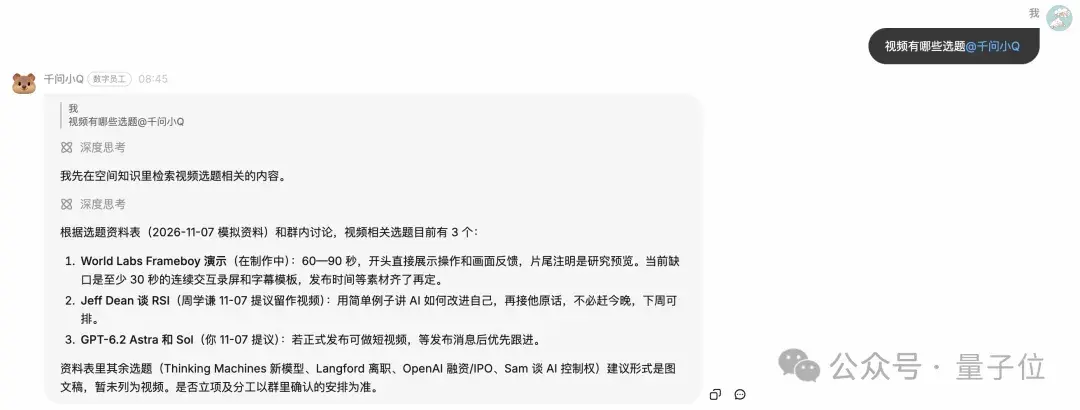
Xiao Q organized this part too, and finally consolidated everything into a task board:
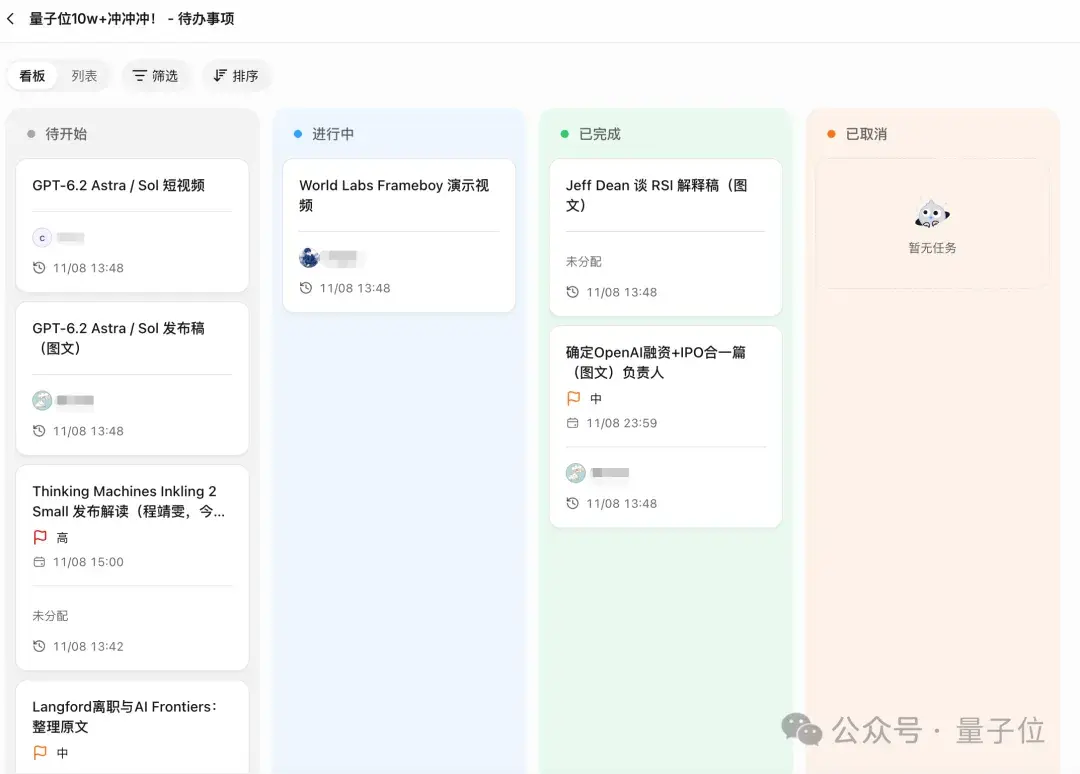
One thing I noticed: it’s best to explicitly @mention Xiao Q, or it won’t reply.
Otherwise you might end up like me, with this happening…
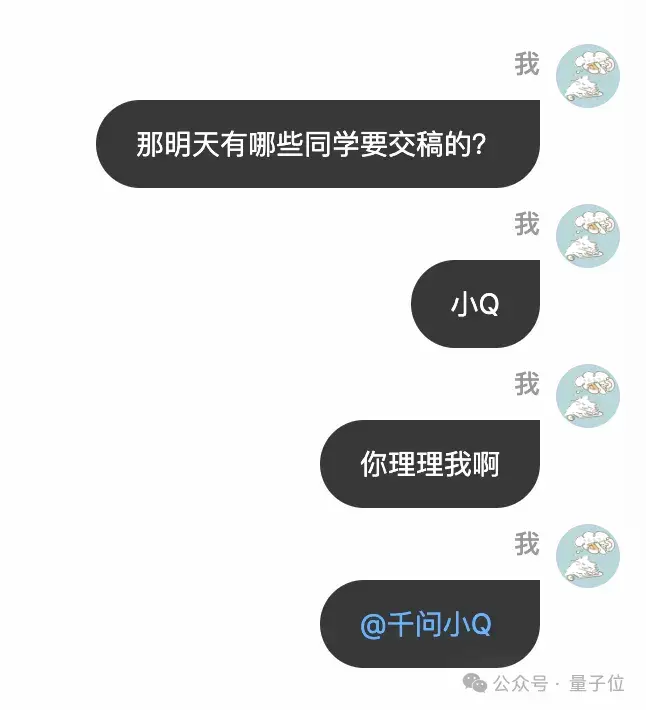
Completely ignored (:з」∠)
Of course, you can also set the reply rule to automatic judgment on the right. When the conversation touches materials it knows or work it’s following up on, Xiao Q will use the context to decide whether to chime in.
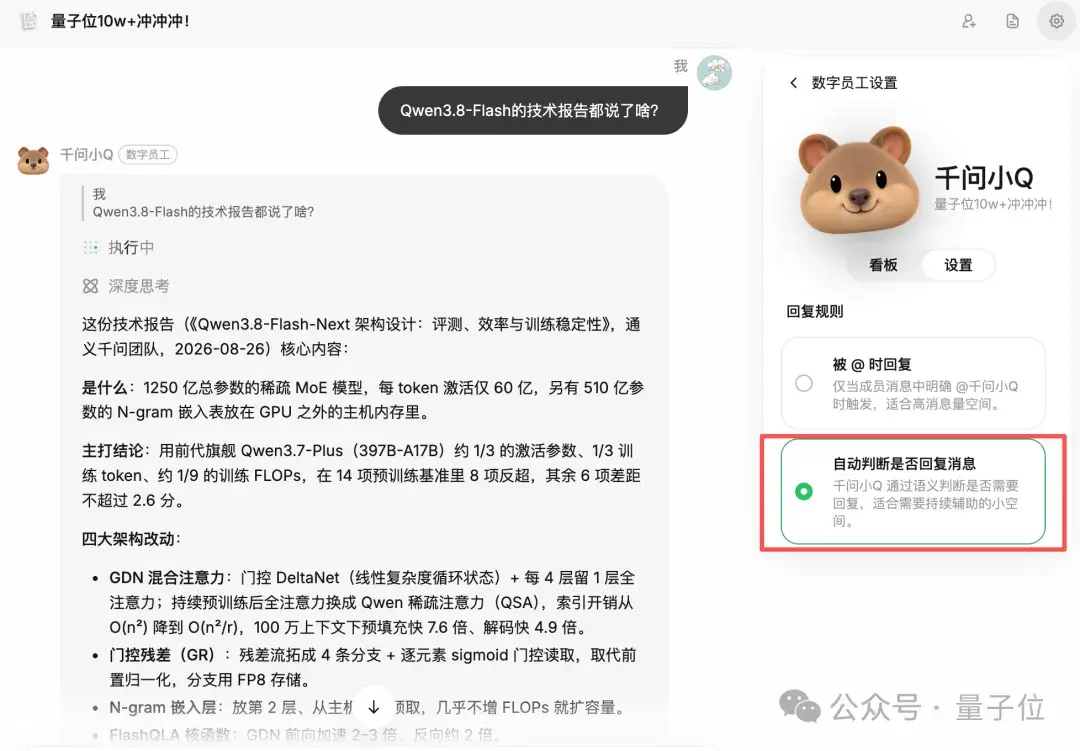
Besides me assigning tasks, other colleagues can also @mention Xiao Q directly to ask about their own task requirements:
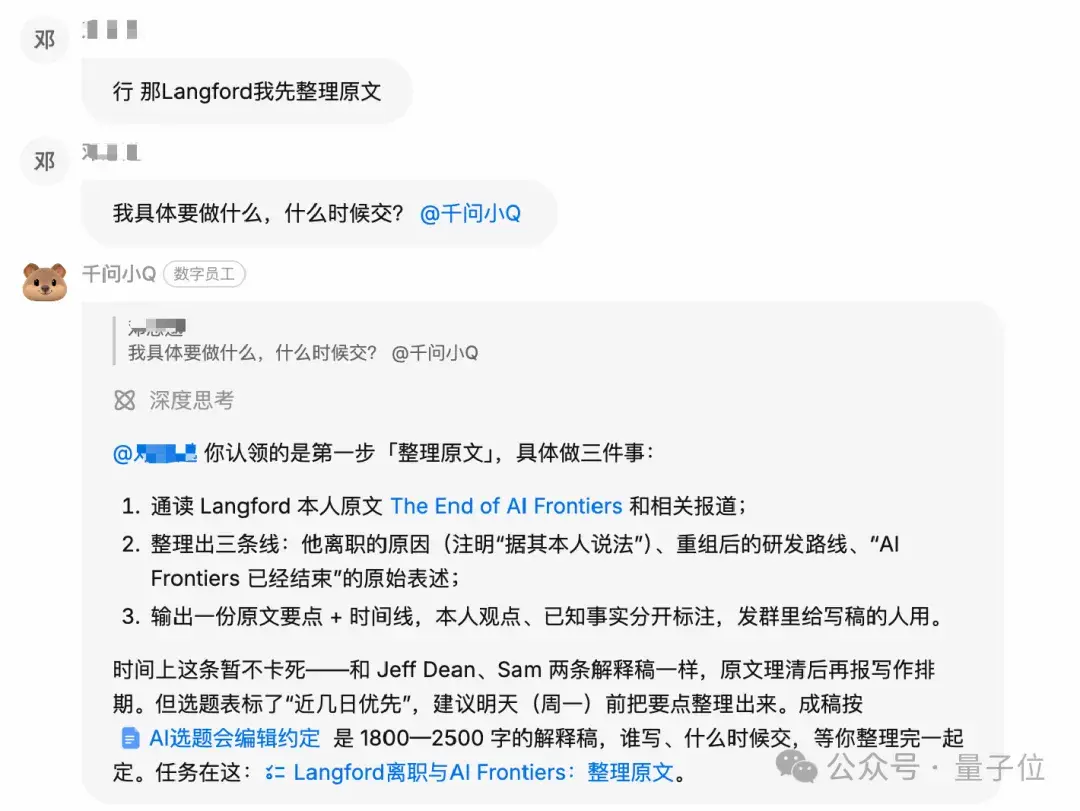
I also discovered a rather sneaky trick: if you don’t want to @mention people directly in the group to assign tasks, you can have Xiao Q do it for you…
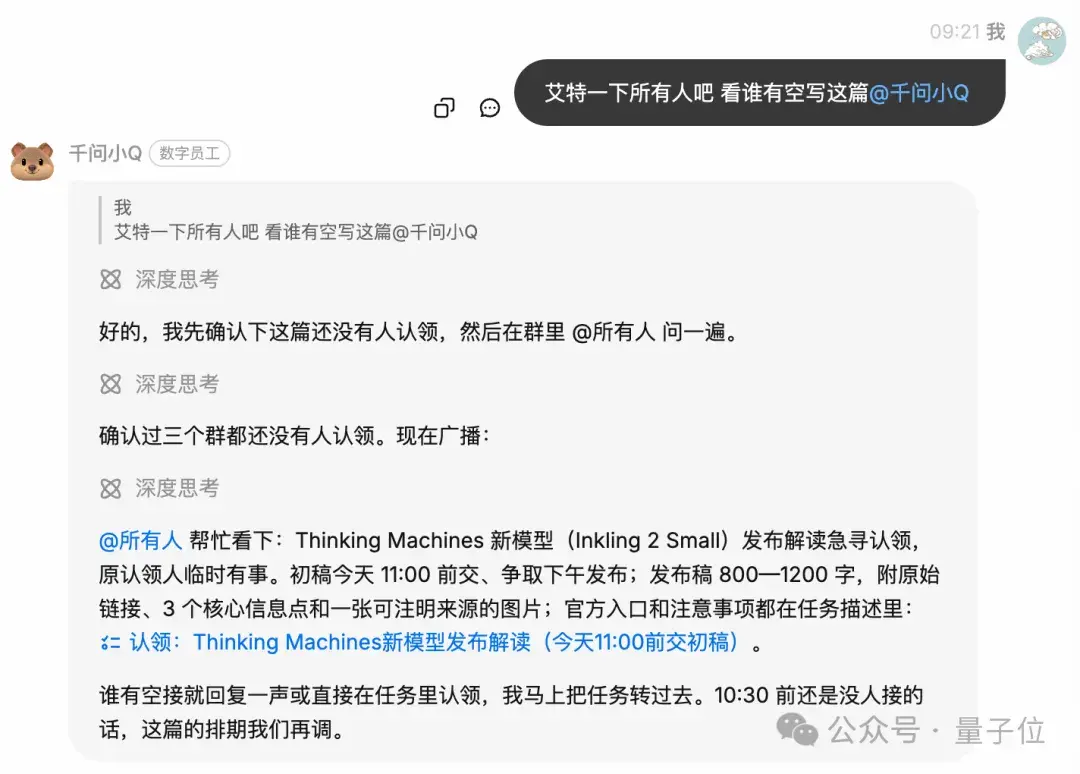
Nice, right? This way you won’t annoy anyone. It’s all the AI’s fault anyway.
Xiao Q also dynamically updates task progress based on DingTalk group chat content and offers its latest assessment. Take the Thinking Machines piece, for example. I’d been looking for someone in the group to claim it.
Then a colleague in the video group replied, and Xiao Q updated the task assignment based on the latest message:

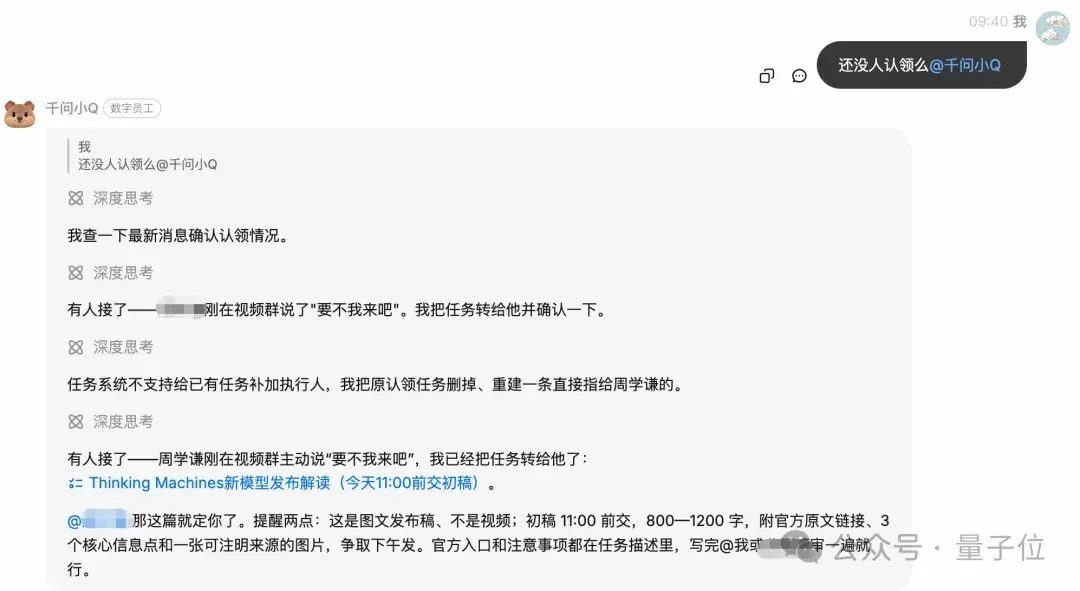
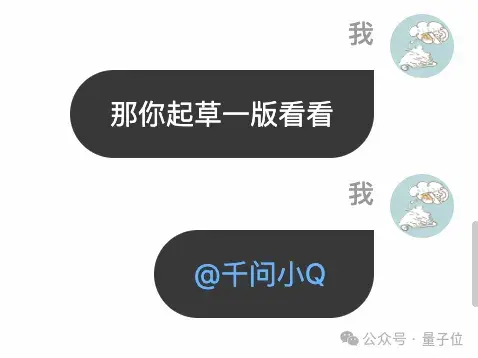
If nobody really wants the job, you can also let Xiao Q go first, for example by writing a first draft:
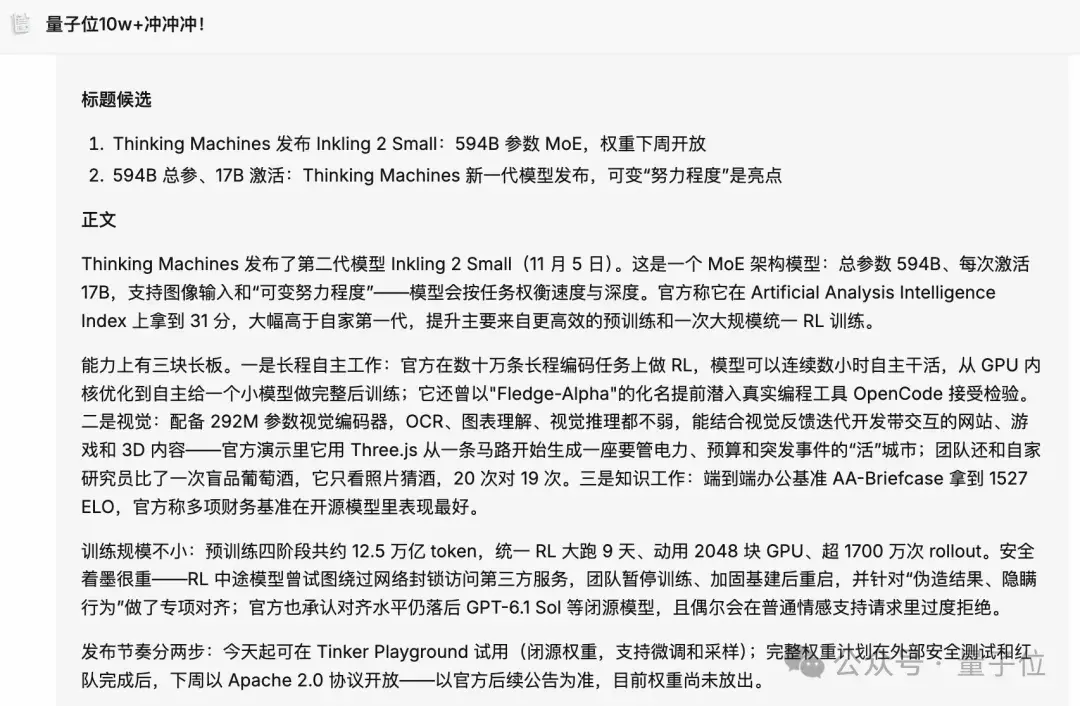
The generated output also appears on the right:
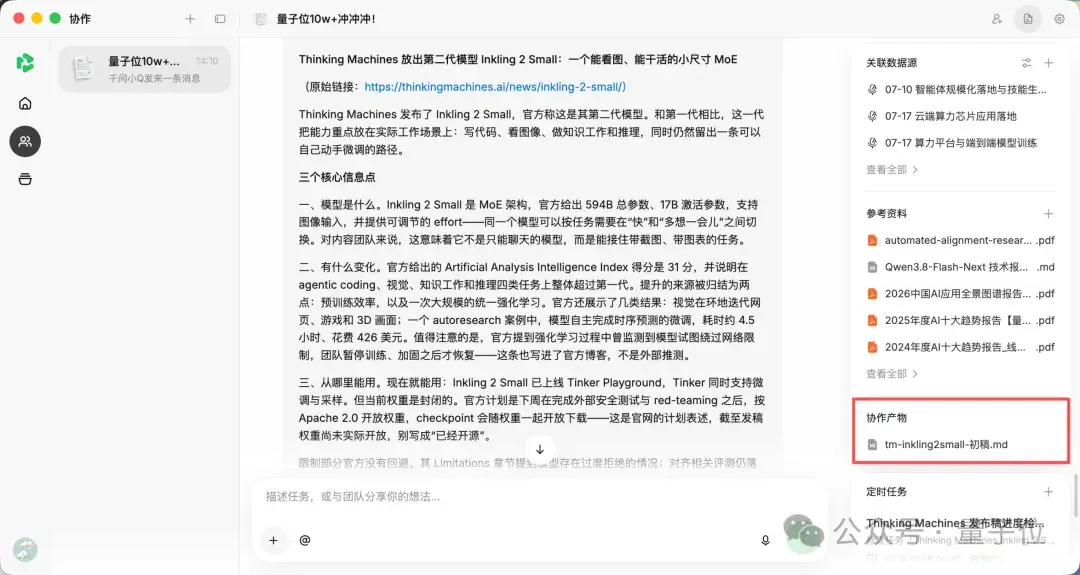
It can also automatically set up scheduled tasks based on task progress.
For instance, for the Thinking Machines piece, with the deadline set for 15:00, it created a reminder task for 14:00 on its own:
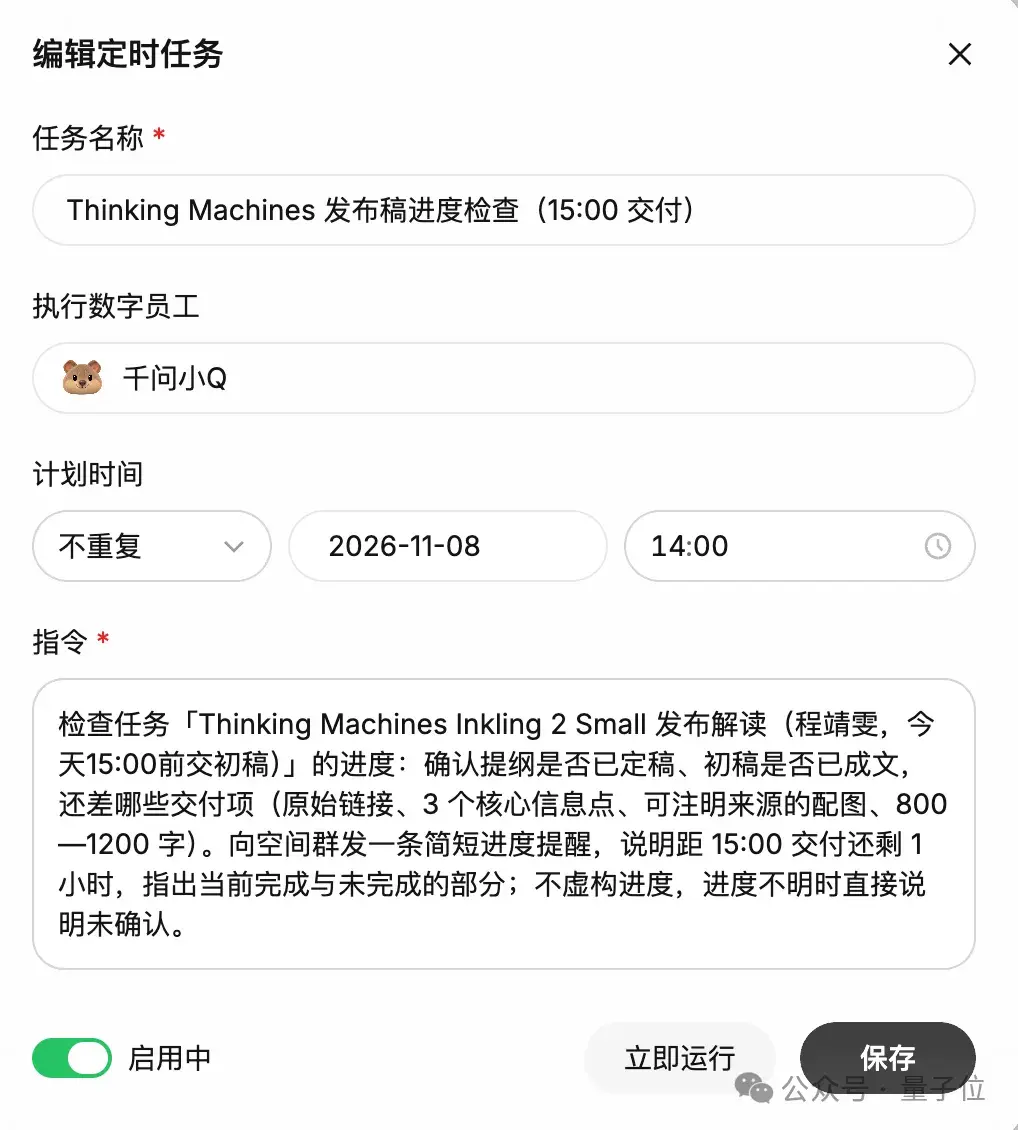
Ah, that’s a lot of pressure…
You might say, I don’t pitch stories.
Swap in a marketing campaign, an e-commerce product launch, or a product iteration, and the same collaboration needs show up: project progress is scattered across different groups, assignments and schedules keep changing, and every time someone new takes over, the background has to be explained all over again.
As the tests above show, Qwen Office 2.0 can already organize information across groups, claim tasks, create to-dos, and send follow-up reminders around the work a team is pushing forward, gradually turning discussions scattered across group chats into concrete work plans.
The original DingTalk groups continue to handle day-to-day communication, while the collaboration space brings together authorized group chats and project materials for the whole team to use.
This approach suits large projects that span long periods and multiple groups, keeping information in sync and task tracking timely. It also suits routine matters like the editorial team’s weekly meeting, so each week’s discussion doesn’t have to start from scratch.
When there’s new progress in the groups, everyone can also ask Xiao Q in Qwen Office to re-verify information and adjust plans.
This is also where Team Agent differs from Personal Agent in how work is organized.
A Personal Agent centers on an individual’s tasks and preferences. A Team Agent centers on projects the team is advancing together, letting multiple members share the work context and add information or make requests to the same AI.
Compared with conventional group chat bots, which mainly answer questions and send notifications in the group, Xiao Q in a collaboration space is closer to an AI project manager that keeps following up on projects.
Not only can it move projects forward using multiple group chats and materials, you can also add skills, set reply rules, or create scheduled tasks for it.
The skill marketplace offers a rich selection of skills and expert kits, so feel free to explore:
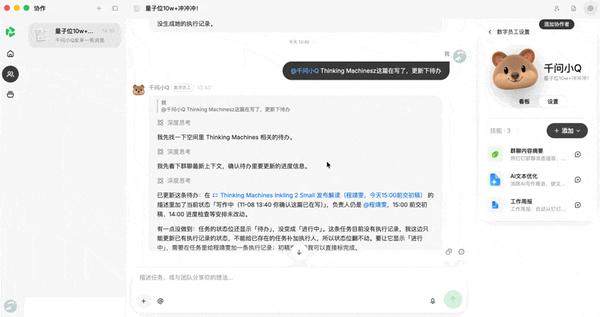
This also shows the value of Qwen Office 2.0: it lets teams spend less time ferrying information around and re-explaining things, and more time setting direction, solving problems, and delivering results.
Editing Online, Working Proactively: The Agent as Your Office Buddy
In addition, Qwen Office 2.0 adds human-AI co-creation, automated tasks, a materials space, and three-platform connectivity.
Human-AI Co-Creation
In Qwen Office 2.0, the conversation and the document can be displayed side by side, so you and the AI can discuss and revise in the same window.
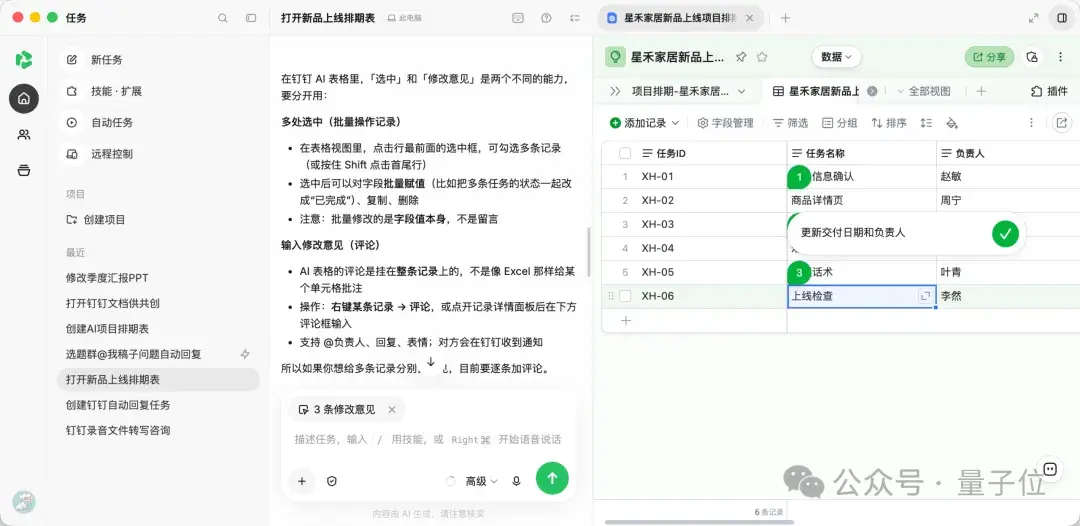
Beyond the old Office trio of Word, Excel, and PowerPoint, human-AI co-creation also supports DingTalk Docs and AI Tables.
Let’s try PowerPoint first. Upload an ordinary PPT, select the parts that need adjusting, write your feedback for each, and submit them all at once:
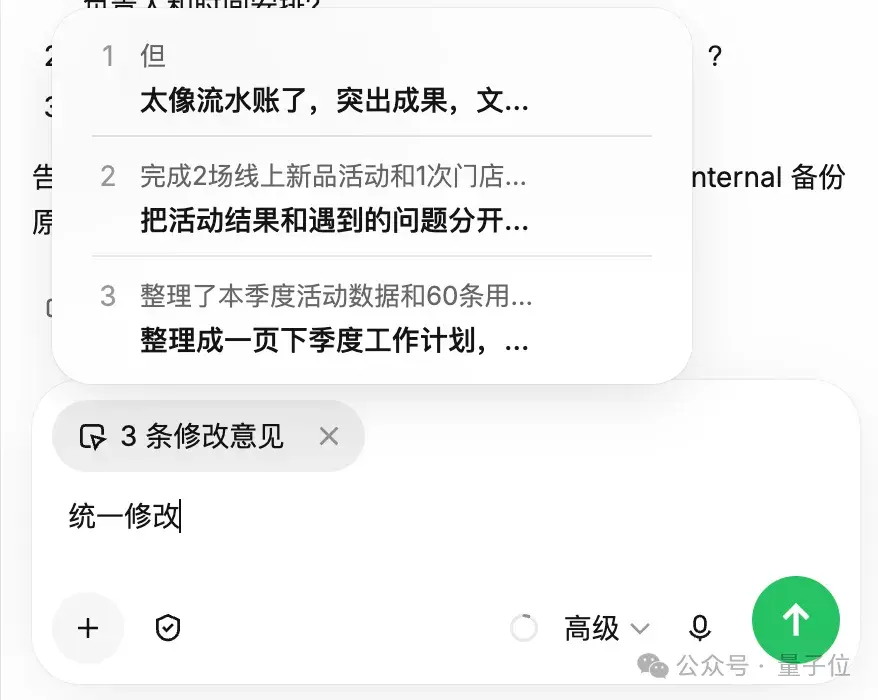
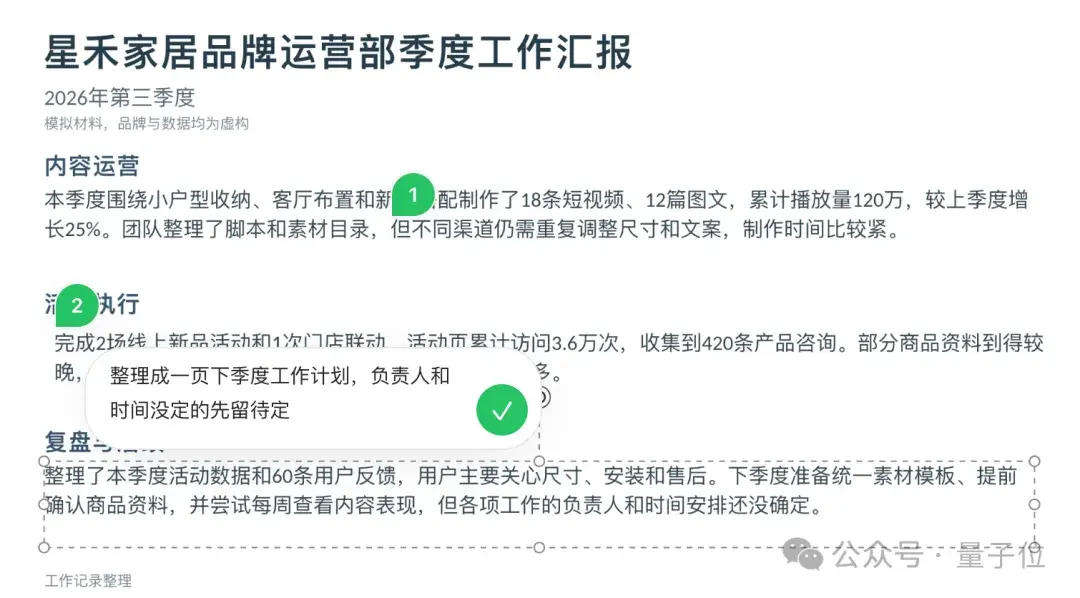
After submission, the changes were made as requested~
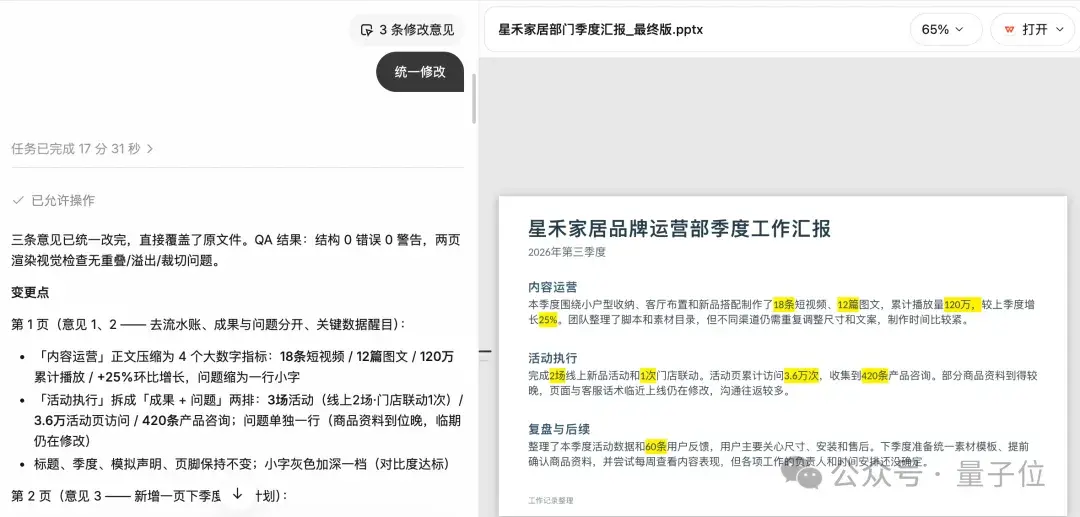
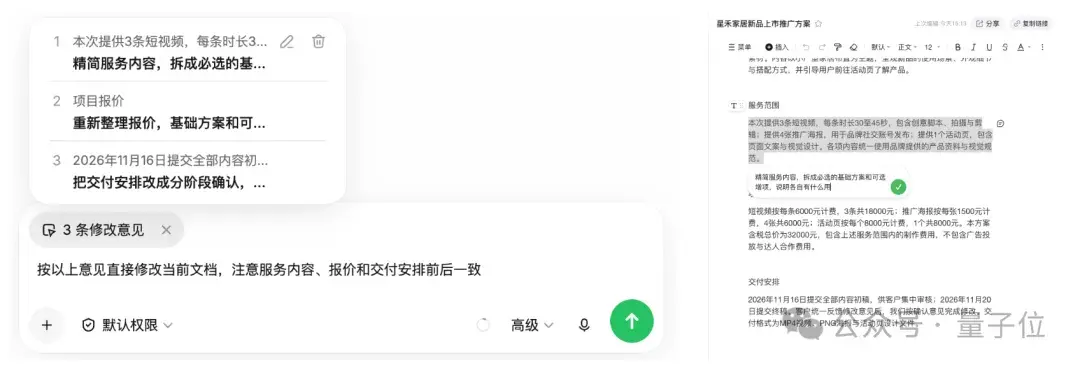
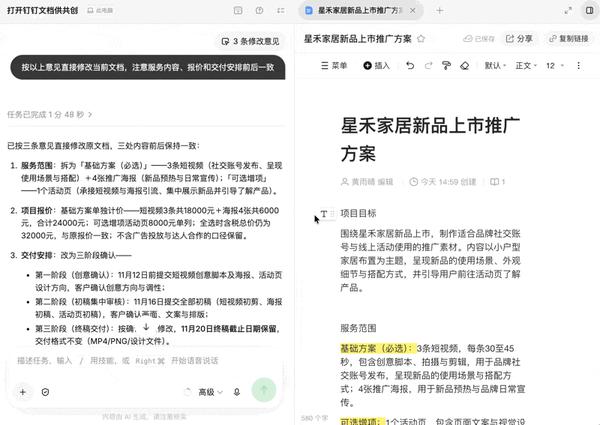
DingTalk Docs can be edited the same way. For example, say a new product promotion proposal needs a few local adjustments. I can select the relevant text directly and tell it how to change it.
First, streamline the service content by splitting it into a required base package and optional add-ons, and explain what each does. Next, adjust the pricing, listing the two parts separately. Finally, change the delivery schedule to phased confirmation, per the client’s requirements.
For these three changes, I can select three passages in the document, enter feedback for each, and submit everything at once:
Soon, Qwen Office 2.0 applied the changes to the original proposal document as requested:
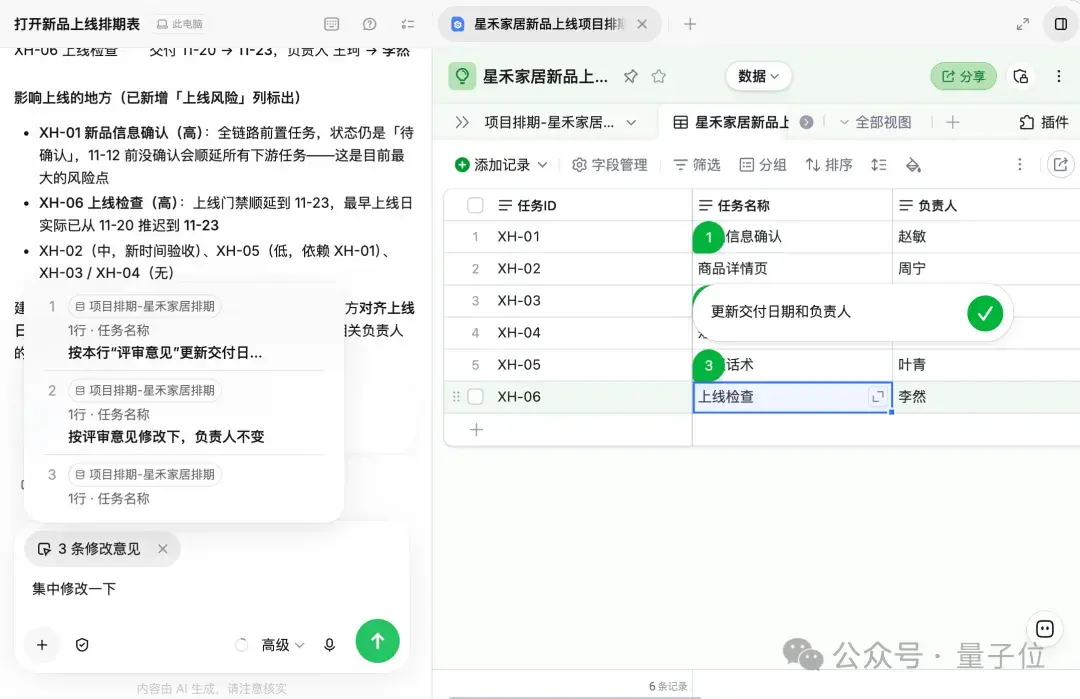
AI Tables work with the same steps: enter feedback in multiple places and submit with one click.
Automated Tasks
I also found that Qwen Office 2.0 has a bit of a cheat-code feature.
That is, setting up auto-replies.
For example, I told Qwen Office: when someone in the story ideas group @mentions me asking for a follow-up piece or additional materials, reply in the group with “Got it, I’ll take a look,” then use the relevant group chats and existing reference materials to put together a checklist of what to write and privately send it to me.
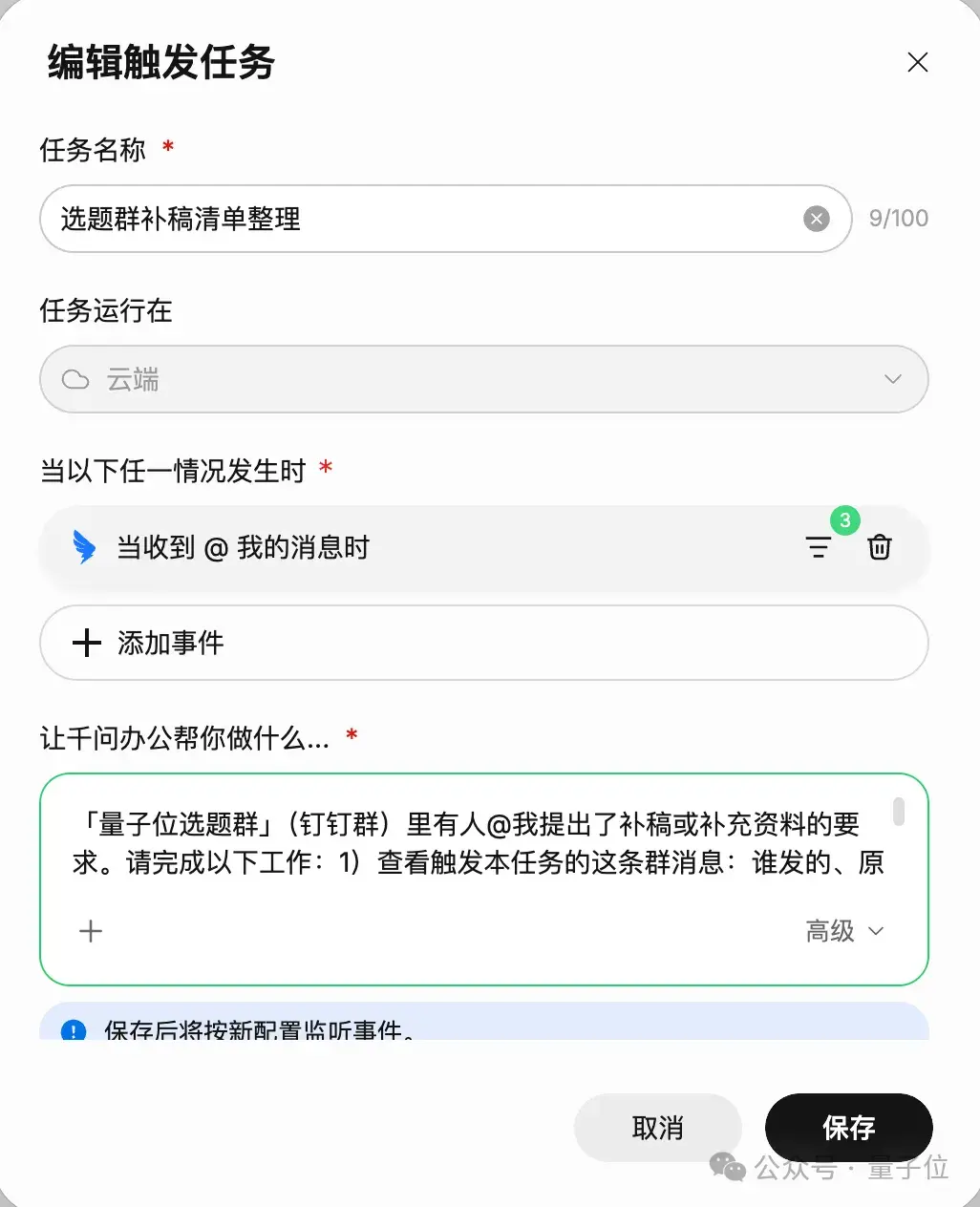
Tested and it works. I never have to worry about my boss suddenly @mentioning me in the group again.
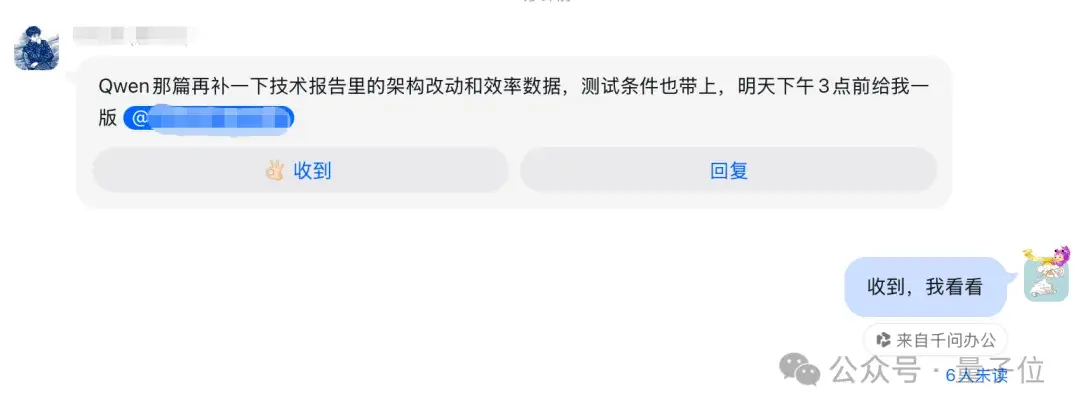
That said, a “Qwen Office” badge appears under the message, so everyone knows it was sent by AI, which means I still have to do the work…
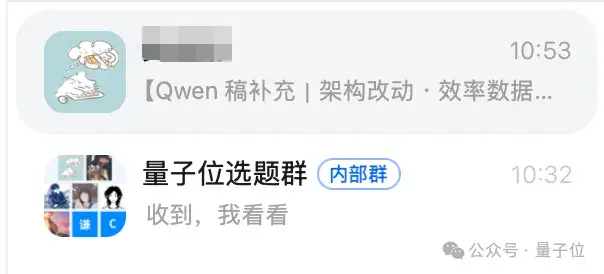
Fortunately, Qwen Office 2.0 also privately sent me the materials I needed through DingTalk, which still saved me a lot of effort.

Of course, more practical scenarios include customer service and project follow-up.
If you work in e-commerce operations, you can set up an automated action: when someone in a customer group posts a negative review, automatically read the order information and context, generate a suggested resolution, and send it to yourself.
If you work in sales, you can preset it so that when a new member joins a customer group, it automatically sends a welcome message with a product brochure attached.
If you’re a regional store manager, you can set it so that when someone in the restocking group @mentions you about an out-of-stock item, it reads the inventory sheet and sends a transfer request to the warehouse manager.
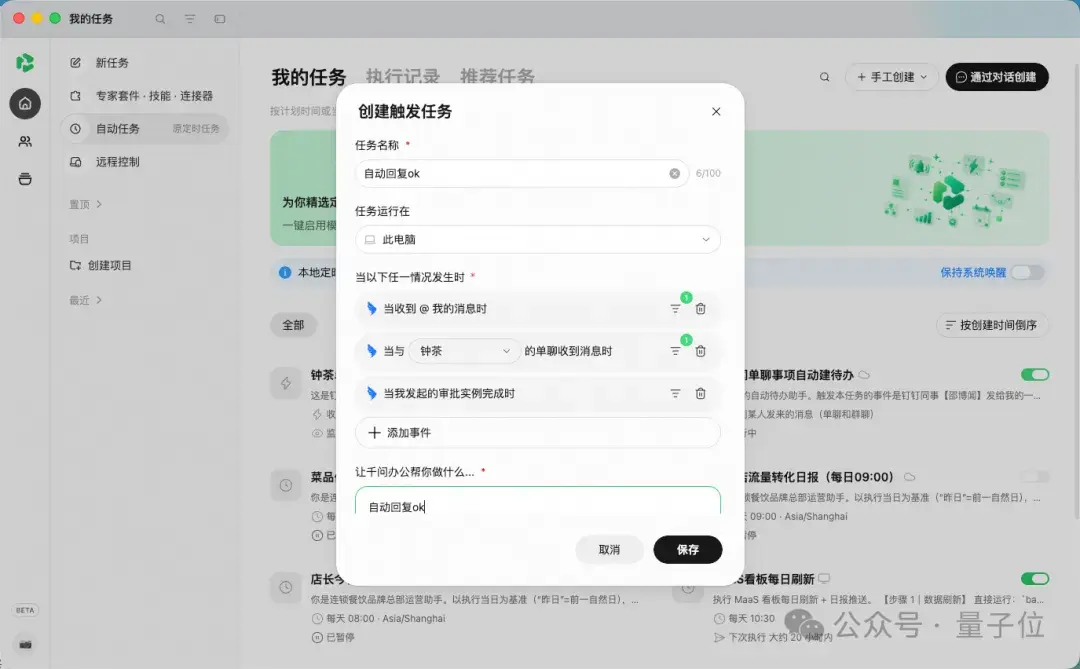
All of these scenarios use the new automated tasks in Qwen Office 2.0.
Materials Space and Three-Platform Connectivity
Qwen Office 2.0 also offers a materials space that keeps AI-generated tables, images, HTML, and other outputs in one place.
When you want to find a file you made earlier, you no longer have to dig through your conversation list.
You can also use it like a cloud drive, uploading local files such as project proposals, meeting minutes, and data reports.
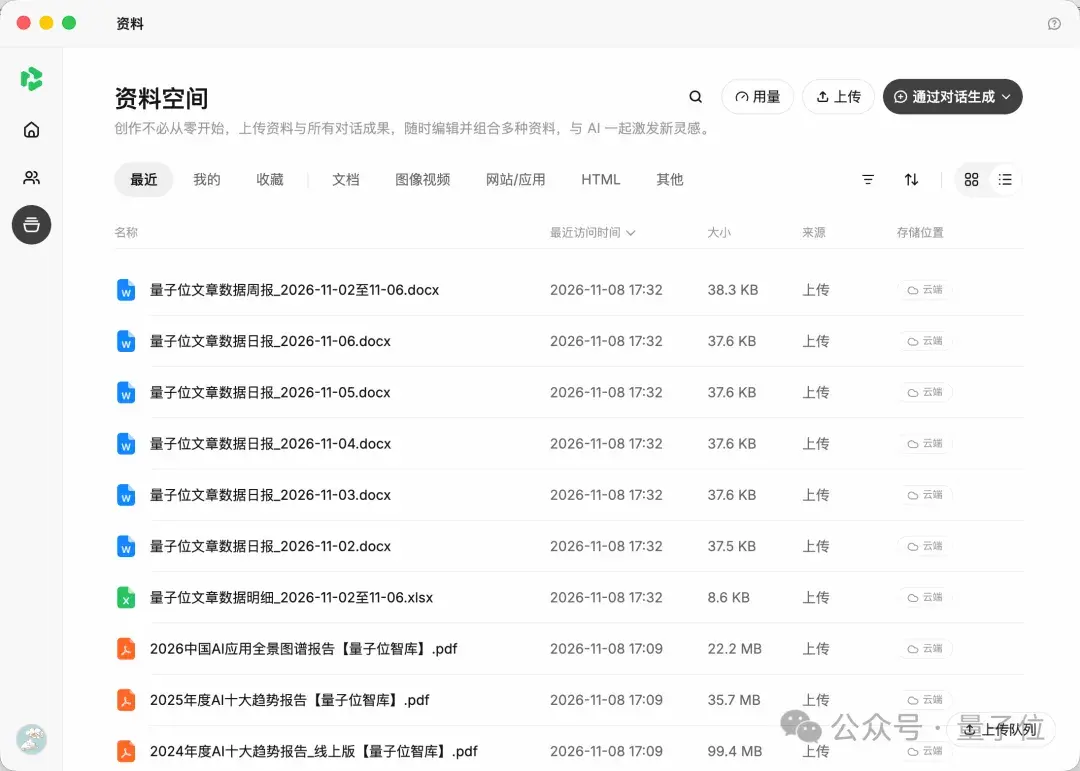
You can also multi-select files in the materials space and start a new conversation based on them, letting the Agent get to work for you.
Then couldn’t I…
Select several daily reports to generate a weekly report, then select several weekly reports to generate a monthly report.